Keep the Guide with Your Design
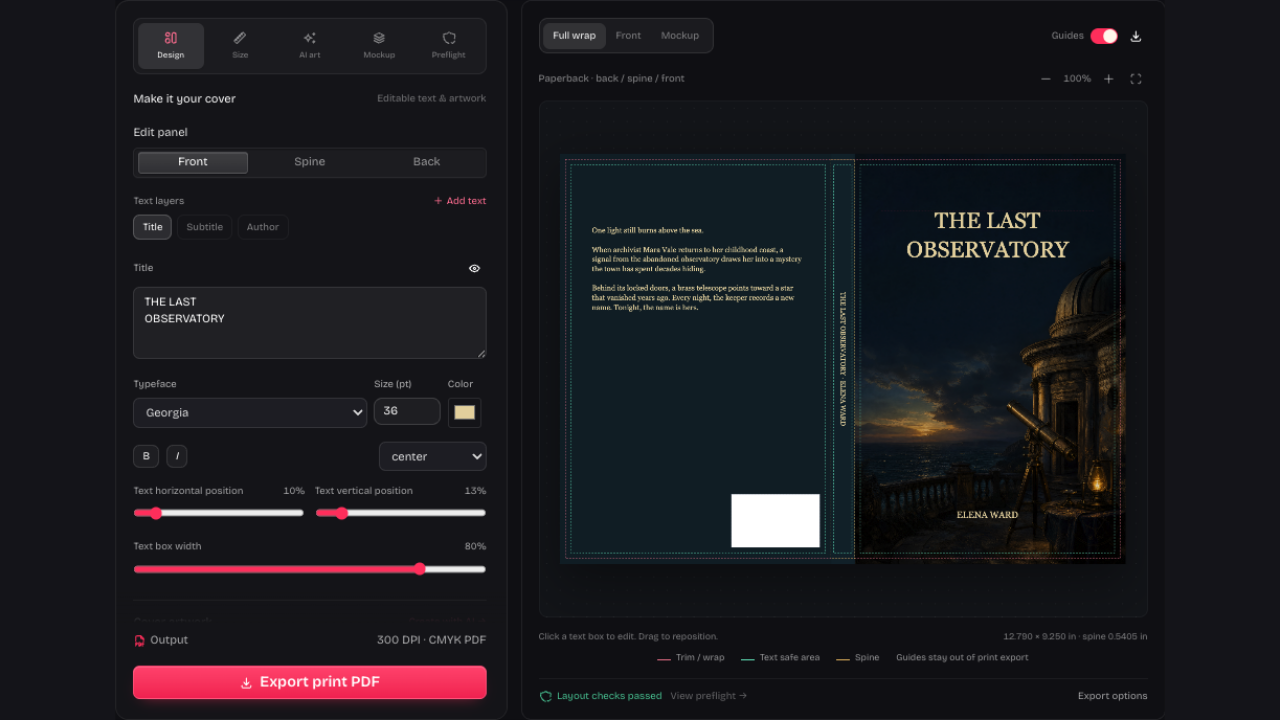
The KDP Cover Template Generator carries your book settings into Design. Position artwork and text on the same measured canvas, without typing the trim, paper and page count again.
Open KDP Cover Template GeneratorUse the KDP Cover Template Generator to build a guide from trim, paper and page count. Download a PDF or design on the same measured canvas.
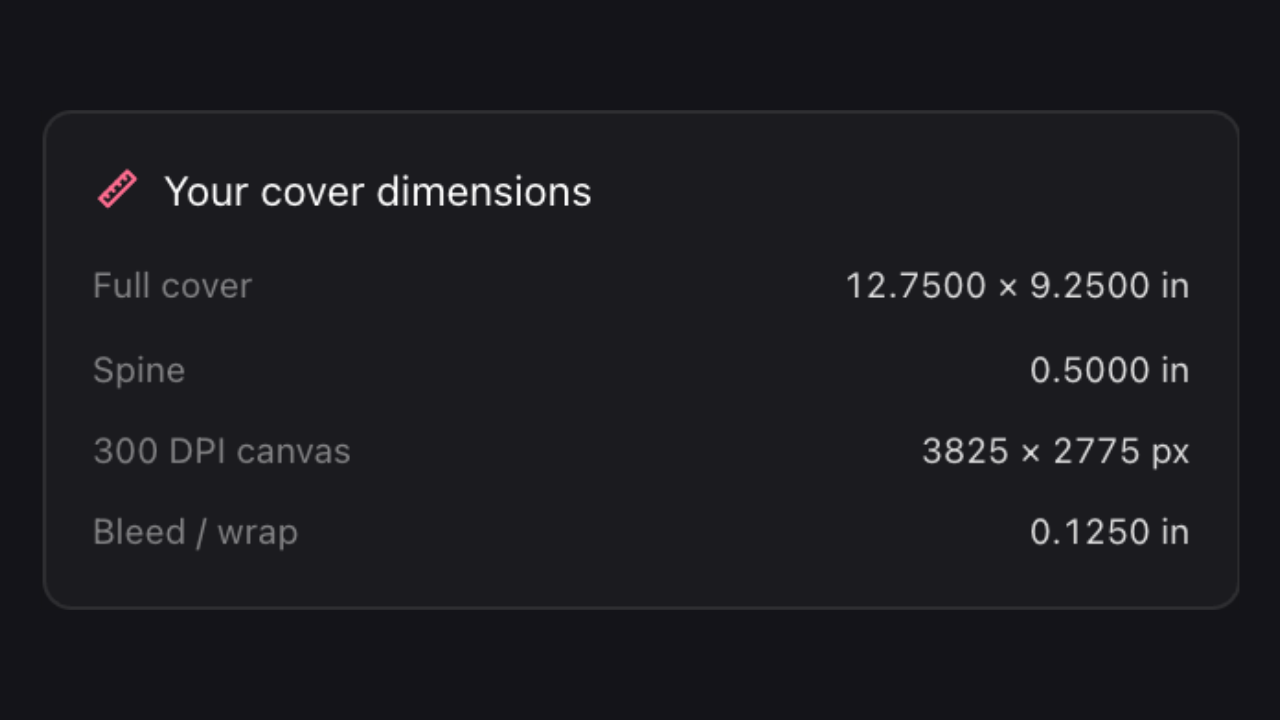
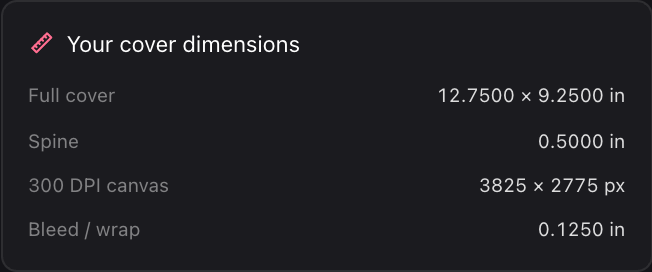
A real KDP paperback example: 6 × 9 inches, 200 pages, cream paper. The calculated spine is 0.5000 inches and the full template is 12.7500 × 9.2500 inches.
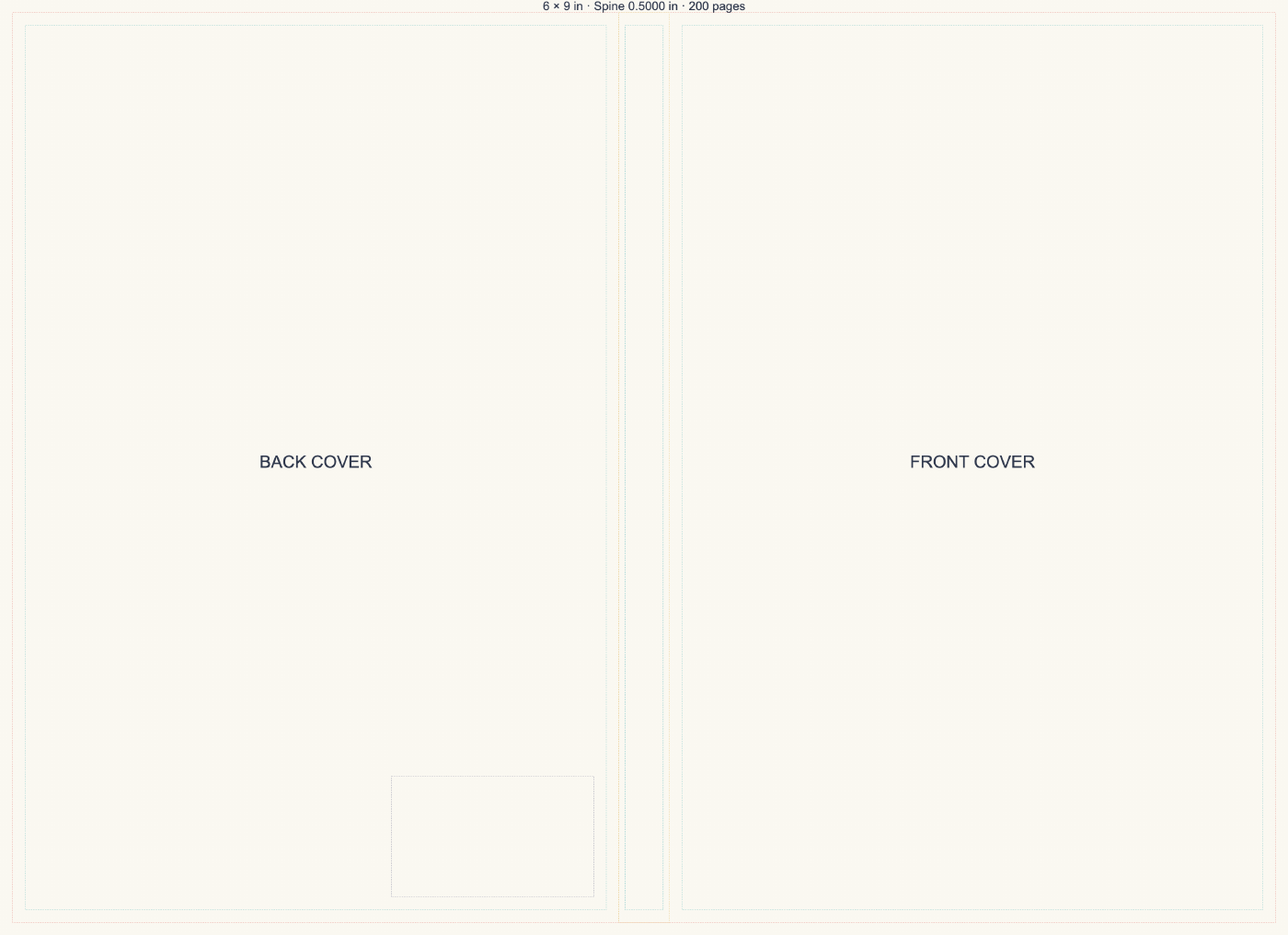
KDP Cover Template Generator example: the guide marks trim, text-safe areas, spine and barcode space. Keep those lines out of your finished print file.
Enter binding, trim, final page count and paper in the KDP Cover Template Generator. Use the interior file you plan to publish.
Read the full-cover and spine measurements, then preview the guide-only layout. Trim, text-safe areas and the barcode reserve help you plan your design.
Download the guide PDF without signing in. Switch to Design to work on the same measured canvas; the finished print export excludes guide lines.
The KDP Cover Template Generator carries your book settings into Design. Position artwork and text on the same measured canvas, without typing the trim, paper and page count again.
Open KDP Cover Template Generator
Use the KDP Cover Template Generator for layout planning, then finish your design on that canvas. The print PDF combines front, spine and back without the planning lines.
Open KDP Cover Template GeneratorChoose paperback or a supported hardcover size in the KDP Cover Template Generator before you start placing artwork.
Use the calculated spine boundaries to position lettering, then recheck that placement whenever the final interior page count changes.

Keep the optional barcode reserve clear when your publisher will add a barcode to the finished back cover.
Save an editable backup alongside the guide, so a later page-count change does not mean rebuilding the entire cover.
A guide-only PDF based on your binding, trim, paper and final page count. It marks trim, text-safe areas, spine and optional barcode space. Use it to plan placement before making your finished cover.
Use the calculator to check measurements and this page to download them as a guide. Both share the same settings, so you can continue into Design without entering your book details again.
Yes, for the supported KDP hardcover sizes. Choose your binding first: hardcover and paperback need different layouts. For an ebook, export a front-only cover rather than uploading the full-wrap guide.
Update it in the KDP Cover Template Generator and download a fresh guide. Your design stays in the project, but check spine lettering, back-cover text and artwork against the new boundaries. You may need to reposition them.
The guide PDF includes them; the separate print PDF leaves them out. If KDP will add your barcode, keep that space clear. Check your finished print file in KDP’s previewer.
No, this is an independent tool. Compare the guide with KDP’s current official template for the same settings. The tool flags unsupported combinations, but a valid guide doesn’t guarantee publisher approval.

Enter the final book settings above, inspect the guide and download a template PDF without signing in.
Open KDP Cover Template Generator